

Metadata Captured
- Source: The source from where the user filled the survey. This could be an App, Link, or a Webpage.
- URL: The URL of the page where the user filled the survey.
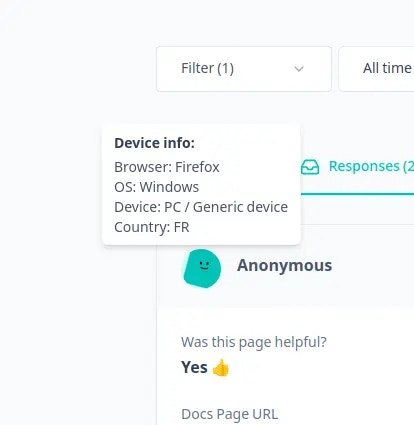
- Browser: The browser used by the user to fill the survey.
- OS: The operating system of the device used by the user to fill the survey.
- Device: The device used by the user to fill the survey.
- Country: The country of the user.
- Action: The action that triggered the survey. This is only available for App surveys.
View Response Metadata
- Go to the Responses tab of your survey.
- Hover over the profile icon of the user on the response card & you should see a tooltip opening up with the metadata details.
Filter Responses by Metadata
- Go to the Responses tab of your survey.
- Click on the Filter button.
- Scroll down & Select the metadata field you want to filter by.
- Select the condition & the value you want to filter by.
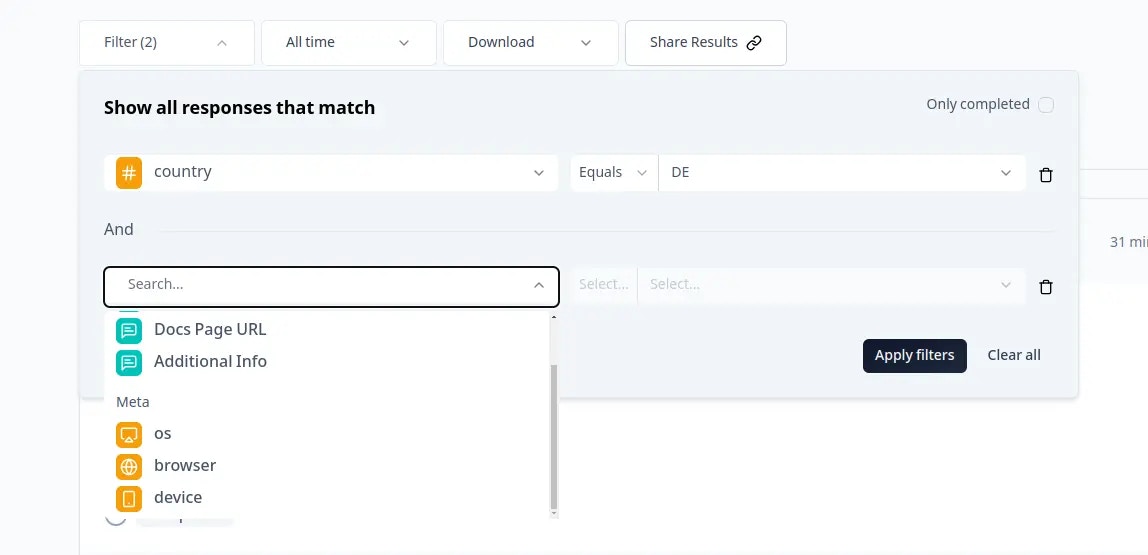
- Now you should see the responses filtered based on the metadata you selected. If you want to see a walkthrough, view the video above to see how you can view & filter responses by metadata.