> ## Documentation Index
> Fetch the complete documentation index at: https://docs.feedbackflowhq.com/llms.txt
> Use this file to discover all available pages before exploring further.
# Data Prefilling
> URL Data Prefilling for Link Surveys in Feedbackflow
Data prefilling via the URL allows you to increase completion rate by prefilling data you already have in a different system. Feedbackflow allows you to prefill multiple questions in a survey.
## Purpose
Data prefilling via URL comes in handy when you:
* Have data for some of the respondents, but not all
* Have data you want the respondent to confirm or update
* Have data in a different system (e.g. your database) and want to add it to the user profile in Feedbackflow
* Want to embed a survey in an email and increase completion by prefilling the choice selected in the email
## Quick Example
```sh Example URL theme={null}
https://app.feedbackflowhq.com/s/clin3dxja02k8l80hpwmx4bjy?question_id_1=answer_1&question_id_2=answer_2
```
## How it works
To prefill survey questions, add query parameters to the survey URL using the format `questionId=answer`. The answer must match the question’s expected type to pass [validation](/xm-and-surveys/surveys/link-surveys/data-prefilling#validation).
Please make sure the answer is [URL encoded](https://www.urlencoder.org/).
## Prefilling Customisation
You can customise the prefilling behaviour using the `skipPrefilled` parameter in the URL. To skip prefilled questions and show the next available question, add `skipPrefilled=true` to the URL. By default, `skipPrefilled` is set to `false`.
## Prefilling multiple values
Feedbackflow lets you prefill as many values as you want. Combine multiple values in the URL using `&`, for example: `name=Bernadette&age=18`. The order of query parameters doesn’t matter, so you can move questions around or add new ones without worrying about the parameter order.
## Where do I find my question Id?
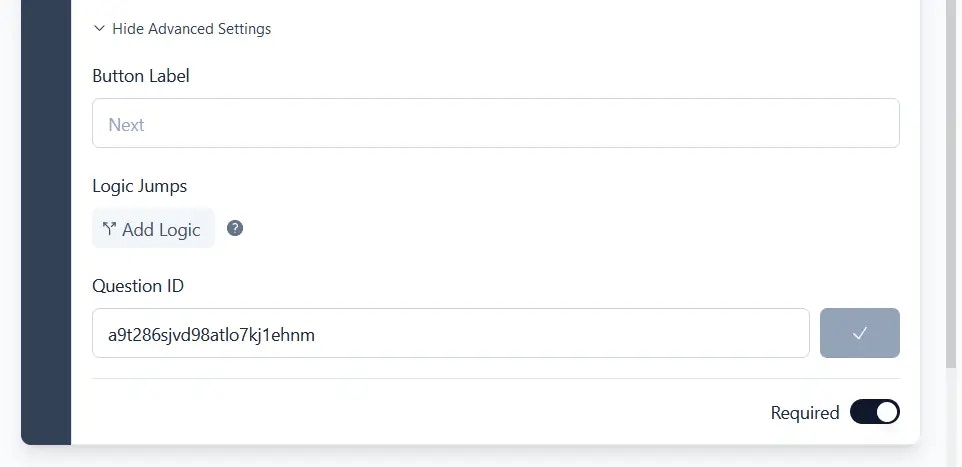
You can find the `questionId` in the **Advanced Settings** at the bottom of each question card in the Survey Editor. You can update the `questionId` to any string you like. However, once you publish your survey, the `questionId` cannot be changed.
 ## Examples
Here are a few examples to get you started:
### Rating Question
Translates to 5 stars / points / emojis:
```sh Rating Question theme={null}
https://app.feedbackflowhq.com/s/clin3yxja52k8l80hpwmx4bjy?rating_question_id=5
```
### NPS Question
Translates to an NPS rating of 10:
```sh NPS Questions theme={null}
https://app.feedbackflowhq.com/s/clin3yxja52k8l80hpwmx4bjy?nps_question_id=10
```
### Single Select Question (Radio)
Chooses the option 'Very disappointed' in the single select question. The string has to be identical to the option in your question:
```sh Single-select Question theme={null}
https://app.feedbackflowhq.com/s/clin3yxja52k8l80hpwmx4bjy?single_select_question_id=Very%20disappointed
```
### Multi Select Question (Checkbox)
Selects three options 'Sun, Palms and Beach' in the multi select question. The strings have to be identical to the options in your question:
```sh Multi-select Question theme={null}
https://app.feedbackflowhq.com/s/clin3yxja52k8l80hpwmx4bjy?multi_select_question_id=Sun%2CPalms%2CBeach
```
### Open Text Question
Adds 'I love Feedbackflow' as the answer to the open text question:
```sh Open Text Question theme={null}
https://app.feedbackflowhq.com/s/clin3yxja52k8l80hpwmx4bjy?openText_question_id=I%20love%20Feedbackflow
```
### CTA Question
Adds 'clicked' as the answer to the CTA question. Alternatively, you can set it to 'dismissed' to skip the question:
```txt CTA Question theme={null}
https://app.feedbackflowhq.com/s/clin3yxja52k8l80hpwmx4bjy?cta_question_id=clicked
```
### Consent Question
Adds 'accepted' as the answer to the Consent question. Alternatively, you can set it to 'dismissed' to skip the question.
```txt Consent Question theme={null}
https://app.feedbackflowhq.com/s/clin3yxja52k8l80hpwmx4bjy?consent_question_id=accepted
```
### Picture Selection Question
Adds index of the selected image(s) as the answer to the Picture Selection question. The index starts from 1
```txt Picture Selection Question. theme={null}
https://app.feedbackflowhq.com/s/clin3yxja52k8l80hpwmx4bjy?pictureSelection_question_id=1%2C2%2C3
```
All other question types, you currently cannot prefill via the URL.
## Validation
Make sure that the answer in the URL matches the expected type for the questions.
The URL validation works as follows:
* For Rating or NPS questions, the response is parsed as a number and verified if it's accepted by the schema.
* For CTA type questions, the valid values are "clicked" (main CTA) and "dismissed" (skip CTA).
* For Consent type questions, the valid values are "accepted" (consent given) and "dismissed" (consent not given).
* For Picture Selection type questions, the response is parsed as an array of numbers and verified if it's accepted by the schema.
* All other question types are strings.
If an answer is invalid, the prefilling will be ignored and the question is
presented as if not prefilled.
## Examples
Here are a few examples to get you started:
### Rating Question
Translates to 5 stars / points / emojis:
```sh Rating Question theme={null}
https://app.feedbackflowhq.com/s/clin3yxja52k8l80hpwmx4bjy?rating_question_id=5
```
### NPS Question
Translates to an NPS rating of 10:
```sh NPS Questions theme={null}
https://app.feedbackflowhq.com/s/clin3yxja52k8l80hpwmx4bjy?nps_question_id=10
```
### Single Select Question (Radio)
Chooses the option 'Very disappointed' in the single select question. The string has to be identical to the option in your question:
```sh Single-select Question theme={null}
https://app.feedbackflowhq.com/s/clin3yxja52k8l80hpwmx4bjy?single_select_question_id=Very%20disappointed
```
### Multi Select Question (Checkbox)
Selects three options 'Sun, Palms and Beach' in the multi select question. The strings have to be identical to the options in your question:
```sh Multi-select Question theme={null}
https://app.feedbackflowhq.com/s/clin3yxja52k8l80hpwmx4bjy?multi_select_question_id=Sun%2CPalms%2CBeach
```
### Open Text Question
Adds 'I love Feedbackflow' as the answer to the open text question:
```sh Open Text Question theme={null}
https://app.feedbackflowhq.com/s/clin3yxja52k8l80hpwmx4bjy?openText_question_id=I%20love%20Feedbackflow
```
### CTA Question
Adds 'clicked' as the answer to the CTA question. Alternatively, you can set it to 'dismissed' to skip the question:
```txt CTA Question theme={null}
https://app.feedbackflowhq.com/s/clin3yxja52k8l80hpwmx4bjy?cta_question_id=clicked
```
### Consent Question
Adds 'accepted' as the answer to the Consent question. Alternatively, you can set it to 'dismissed' to skip the question.
```txt Consent Question theme={null}
https://app.feedbackflowhq.com/s/clin3yxja52k8l80hpwmx4bjy?consent_question_id=accepted
```
### Picture Selection Question
Adds index of the selected image(s) as the answer to the Picture Selection question. The index starts from 1
```txt Picture Selection Question. theme={null}
https://app.feedbackflowhq.com/s/clin3yxja52k8l80hpwmx4bjy?pictureSelection_question_id=1%2C2%2C3
```
All other question types, you currently cannot prefill via the URL.
## Validation
Make sure that the answer in the URL matches the expected type for the questions.
The URL validation works as follows:
* For Rating or NPS questions, the response is parsed as a number and verified if it's accepted by the schema.
* For CTA type questions, the valid values are "clicked" (main CTA) and "dismissed" (skip CTA).
* For Consent type questions, the valid values are "accepted" (consent given) and "dismissed" (consent not given).
* For Picture Selection type questions, the response is parsed as an array of numbers and verified if it's accepted by the schema.
* All other question types are strings.
If an answer is invalid, the prefilling will be ignored and the question is
presented as if not prefilled.