> ## Documentation Index
> Fetch the complete documentation index at: https://docs.feedbackflowhq.com/llms.txt
> Use this file to discover all available pages before exploring further.
# Custom Styling
> Overwrite the global styling theme for individual surveys to create unique styles for each survey.
Overwrite the global styling theme for individual surveys to create unique styles for each survey.
To set a styling theme for all surveys, please see the [Styling Theme](/xm-and-surveys/core-features/styling-theme) manual.
## Overwrite Styling Theme
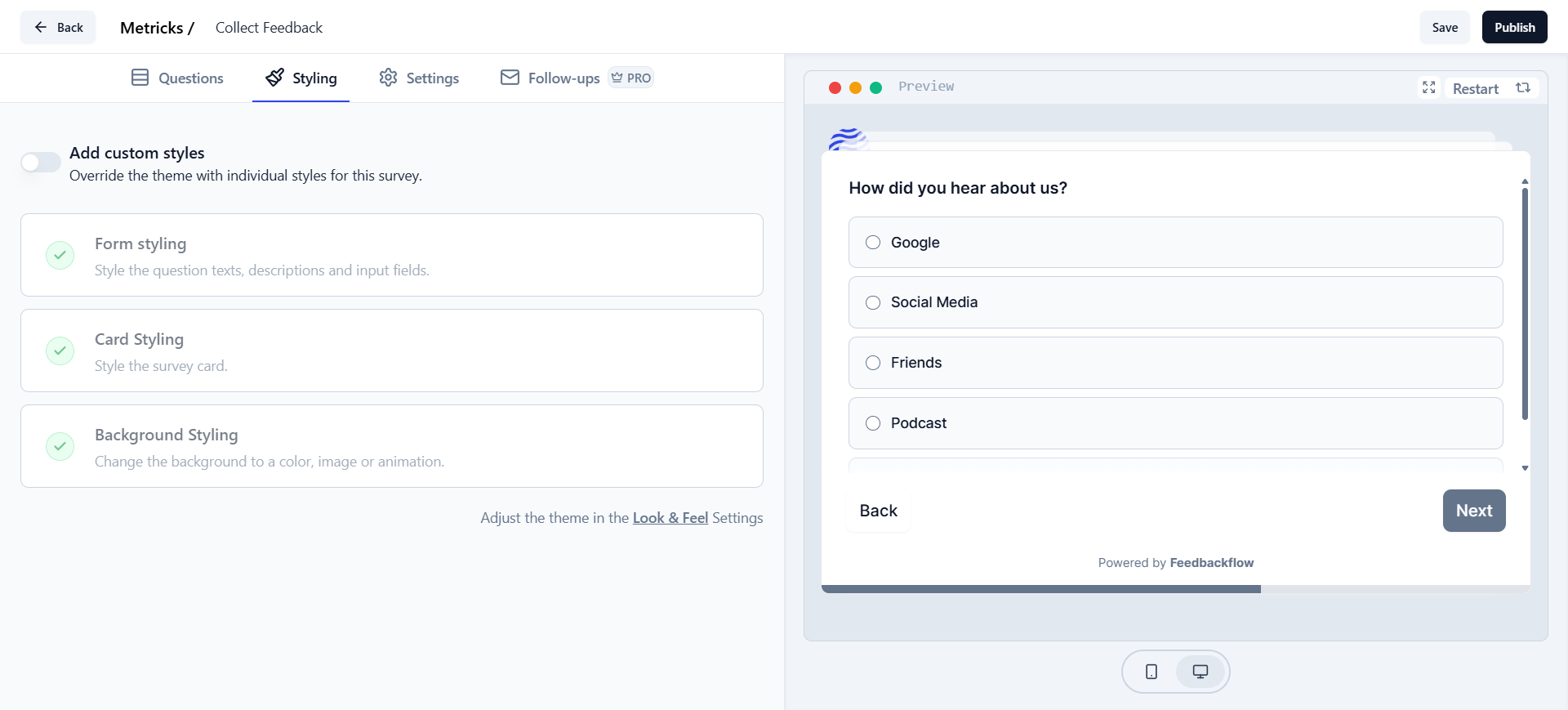
1. In the **Survey Editor** of the survey you want to style, navigate to the **Styling** tab:
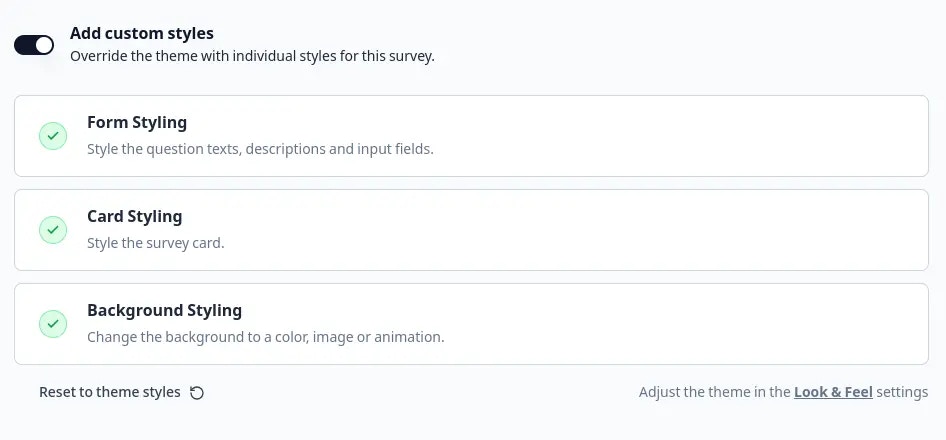
 2. Activate the **Add Custom Styles** toggle to override the default project styling:
 />
3. Customize your survey's style as needed:
/>
3. Customize your survey's style as needed:
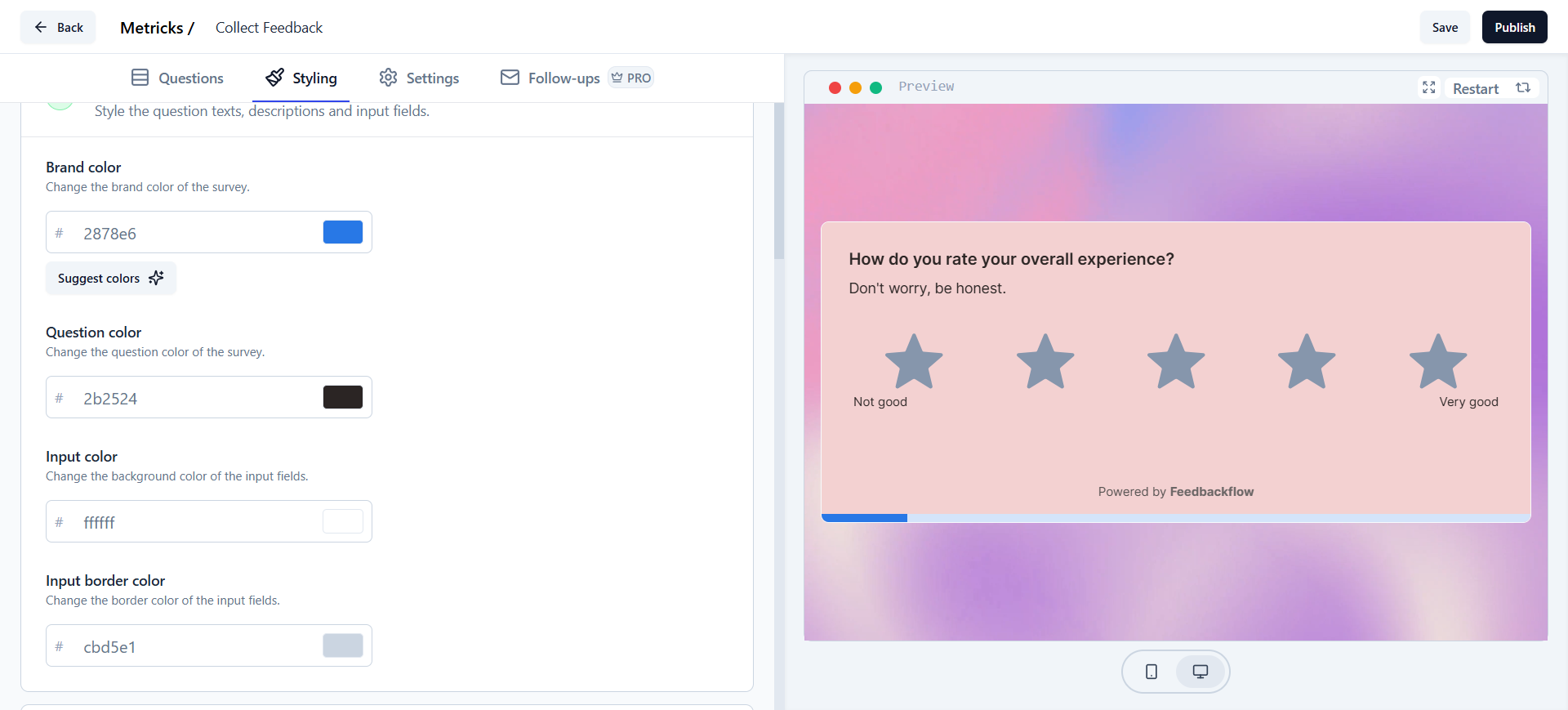 Just hit the **Save** button to apply your changes. Your survey is now ready to impress with its unique look!
## Overwrite CSS Styles for App & Website Surveys
You can overwrite the default CSS styles for app and website surveys by adding the following CSS to your global CSS file (e.g., `globals.css`):
**Do not** change the CSS variable names, as Feedbackflow uses them to identify styling elements. You can adjust the values to fit your design. Below are sample values for reference:
```css theme={null}
/* Overwrite Feedbackflow default styles */
--fb-brand-color: red;
--fb-brand-text-color: white;
--fb-border-color: green;
--fb-border-color-highlight: rgb(13, 13, 12);
--fb-focus-color: red;
--fb-heading-color: yellow;
--fb-subheading-color: green;
--fb-info-text-color: orange;
--fb-signature-text-color: blue;
--fb-survey-background-color: black;
--fb-accent-background-color: rgb(13, 13, 12);
--fb-accent-background-color-selected: red;
--fb-placeholder-color: white;
--fb-shadow-color: var(--fb-brand-color);
--fb-rating-fill: rgb(13, 13, 12);
--fb-rating-hover: green;
--fb-back-btn-border: blue;
--fb-submit-btn-border: transparent;
--fb-rating-selected: black;
```
Just hit the **Save** button to apply your changes. Your survey is now ready to impress with its unique look!
## Overwrite CSS Styles for App & Website Surveys
You can overwrite the default CSS styles for app and website surveys by adding the following CSS to your global CSS file (e.g., `globals.css`):
**Do not** change the CSS variable names, as Feedbackflow uses them to identify styling elements. You can adjust the values to fit your design. Below are sample values for reference:
```css theme={null}
/* Overwrite Feedbackflow default styles */
--fb-brand-color: red;
--fb-brand-text-color: white;
--fb-border-color: green;
--fb-border-color-highlight: rgb(13, 13, 12);
--fb-focus-color: red;
--fb-heading-color: yellow;
--fb-subheading-color: green;
--fb-info-text-color: orange;
--fb-signature-text-color: blue;
--fb-survey-background-color: black;
--fb-accent-background-color: rgb(13, 13, 12);
--fb-accent-background-color-selected: red;
--fb-placeholder-color: white;
--fb-shadow-color: var(--fb-brand-color);
--fb-rating-fill: rgb(13, 13, 12);
--fb-rating-hover: green;
--fb-back-btn-border: blue;
--fb-submit-btn-border: transparent;
--fb-rating-selected: black;
```