> ## Documentation Index
> Fetch the complete documentation index at: https://docs.feedbackflowhq.com/llms.txt
> Use this file to discover all available pages before exploring further.
# User Metadata
> Feedbackflow captures metadata of your users for you when they fill a survey. This metadata is useful for understanding the context in which the user filled the survey. For example, if you are running a marketing campaign, you can understand which source is driving the most responses. Or if you are running a survey on a specific page, you can understand the user's behavior on that page.
## Metadata Captured
* **Source**: The source from where the user filled the survey. This could be an App, Link, or a Webpage.
* **URL**: The URL of the page where the user filled the survey.
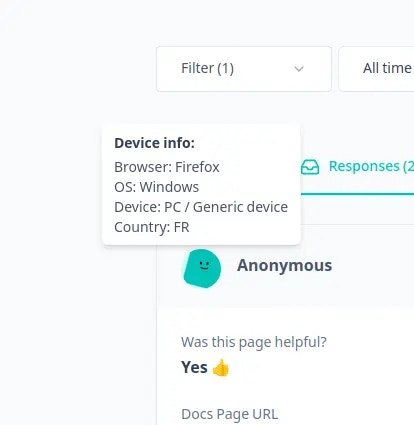
* **Browser**: The browser used by the user to fill the survey.
* **OS**: The operating system of the device used by the user to fill the survey.
* **Device**: The device used by the user to fill the survey.
* **Country**: The country of the user.
* **Action**: The action that triggered the survey. This is only available for App surveys.
## View Response Metadata
1. Go to the Responses tab of your survey.
2. Hover over the profile icon of the user on the response card & you should see a tooltip opening up with the metadata details.
 ## Filter Responses by Metadata
1. Go to the Responses tab of your survey.
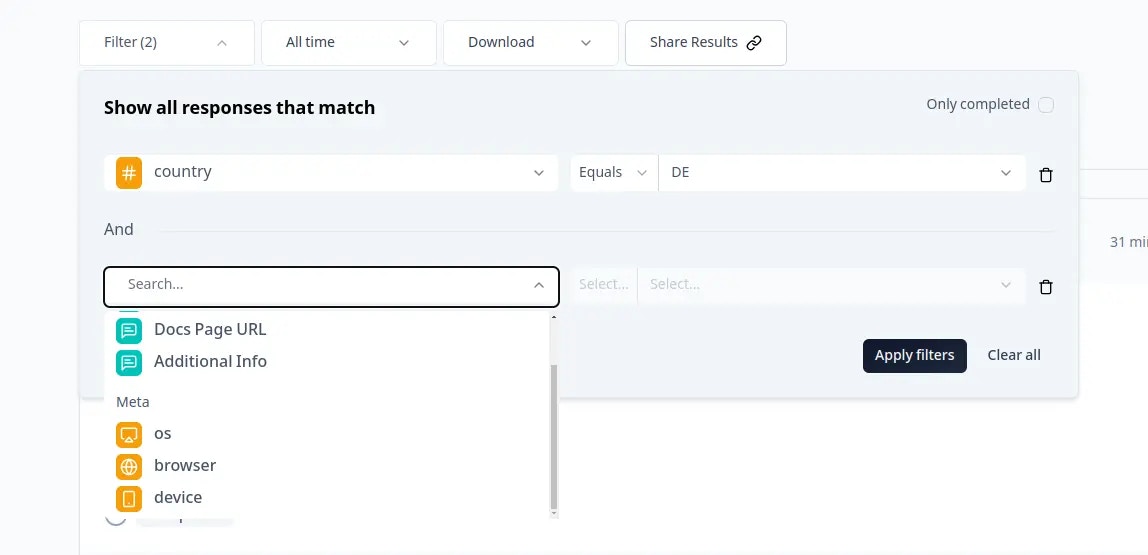
2. Click on the Filter button.
3. Scroll down & Select the metadata field you want to filter by.
4. Select the condition & the value you want to filter by.
## Filter Responses by Metadata
1. Go to the Responses tab of your survey.
2. Click on the Filter button.
3. Scroll down & Select the metadata field you want to filter by.
4. Select the condition & the value you want to filter by.
 1. Now you should see the responses filtered based on the metadata you selected. If you want to see a walkthrough, view the video above to see how you can view & filter responses by metadata.
## Export Metadata
You can export the metadata of your responses along with the response data. When you export responses, you will see the metadata fields in the exported CSV file.
1. Now you should see the responses filtered based on the metadata you selected. If you want to see a walkthrough, view the video above to see how you can view & filter responses by metadata.
## Export Metadata
You can export the metadata of your responses along with the response data. When you export responses, you will see the metadata fields in the exported CSV file.