> ## Documentation Index
> Fetch the complete documentation index at: https://docs.feedbackflowhq.com/llms.txt
> Use this file to discover all available pages before exploring further.
# Styling Theme
> Keep the survey styling consistent over all surveys with a Styling Theme. Customize the colors, fonts, and other styling options to match your brand's aesthetic.
Keep the survey styling consistent over all surveys with a Styling Theme. Customize the colors, fonts, and other styling options to match your brand's aesthetic.
## Configuration
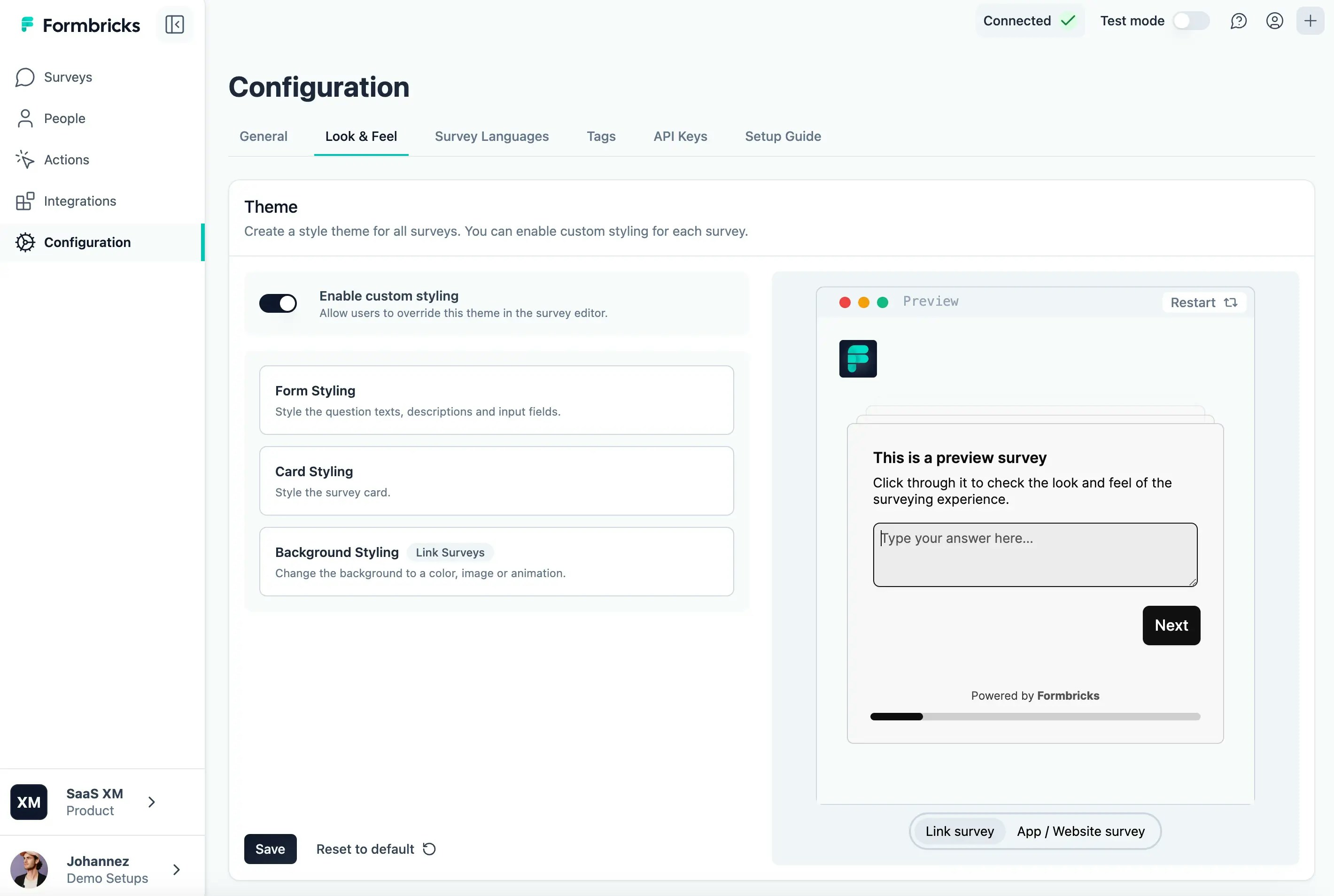
In the left side bar, you find the `Configuration` page. On this page you find the `Look & Feel` section:
 />
## **Styling Options**
1. **Form Styling:** Customize the survey card using the following settings
/>
## **Styling Options**
1. **Form Styling:** Customize the survey card using the following settings
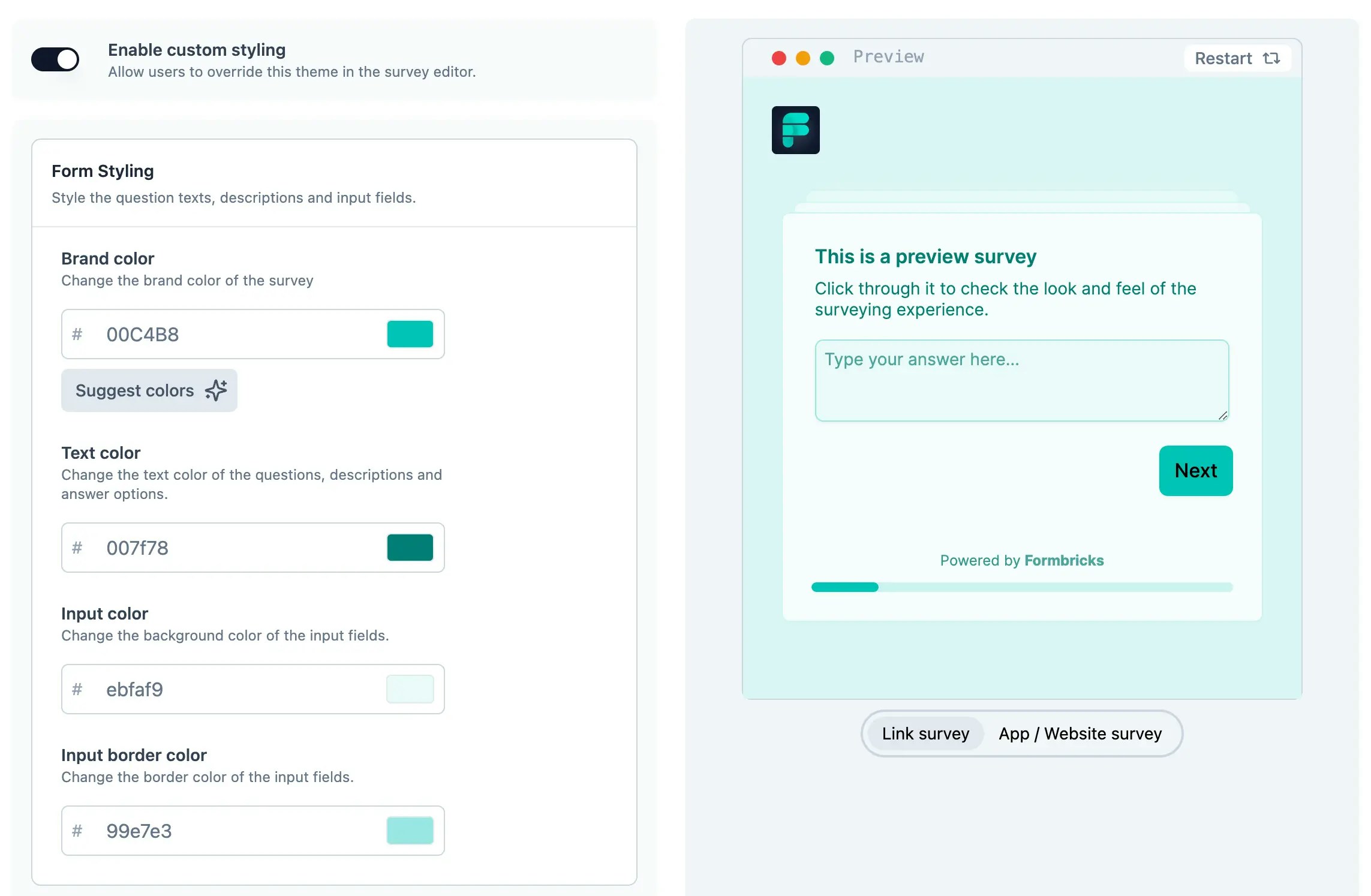 * **Brand Color**: Sets the primary color tone of the survey.
* **Text Color**: This is a single color scheme that will be used across to display all the text on your survey. Ensures all text is readable against the background.
* **Input Color:** Alters the border color of input fields.
* **Input Border Color**: This is the color of the border of the form input field.
2. **Card Styling:** Adjust the look of the survey card
* **Brand Color**: Sets the primary color tone of the survey.
* **Text Color**: This is a single color scheme that will be used across to display all the text on your survey. Ensures all text is readable against the background.
* **Input Color:** Alters the border color of input fields.
* **Input Border Color**: This is the color of the border of the form input field.
2. **Card Styling:** Adjust the look of the survey card
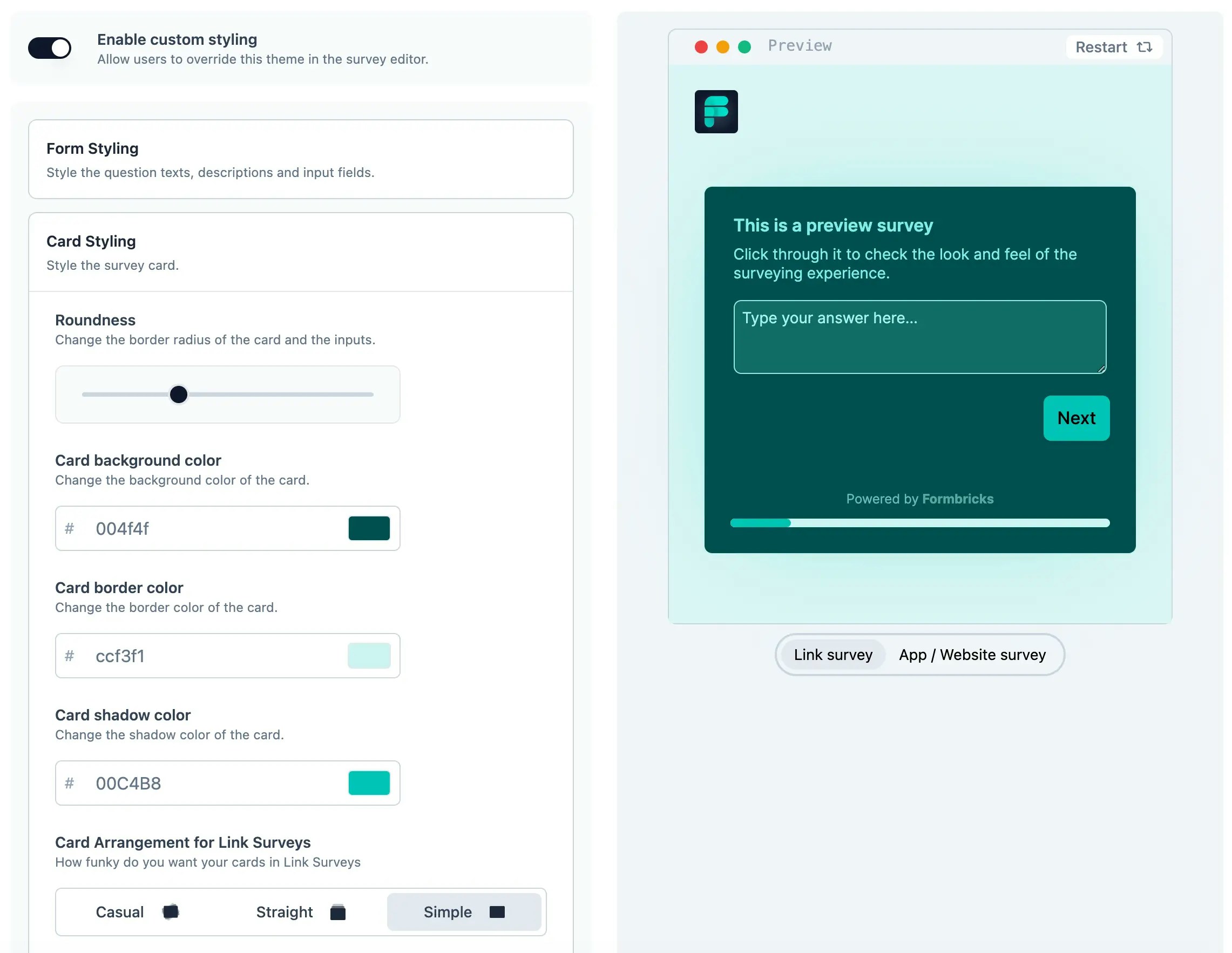 * **Roundness**: Adjusts the corner roundness of the survey card and its components (including input boxes, buttons).
* **Card Background Color**: Sets the card's main background color.
* **Card Border Color**: Changes the border color of the card
* **Card Shadow Color**: Adds a shadow effect for depth
* **Hide Progress Bar**: Optionally remove the progress bar to simplify the survey experience
* **Add Highlight Border**: Adds a distinct border for emphasis.
3. **Background Styling**: Customize the survey background with static colors, animations, or images (upload your own or get from Unsplash)
This is only available for Link Surveys
* **Roundness**: Adjusts the corner roundness of the survey card and its components (including input boxes, buttons).
* **Card Background Color**: Sets the card's main background color.
* **Card Border Color**: Changes the border color of the card
* **Card Shadow Color**: Adds a shadow effect for depth
* **Hide Progress Bar**: Optionally remove the progress bar to simplify the survey experience
* **Add Highlight Border**: Adds a distinct border for emphasis.
3. **Background Styling**: Customize the survey background with static colors, animations, or images (upload your own or get from Unsplash)
This is only available for Link Surveys
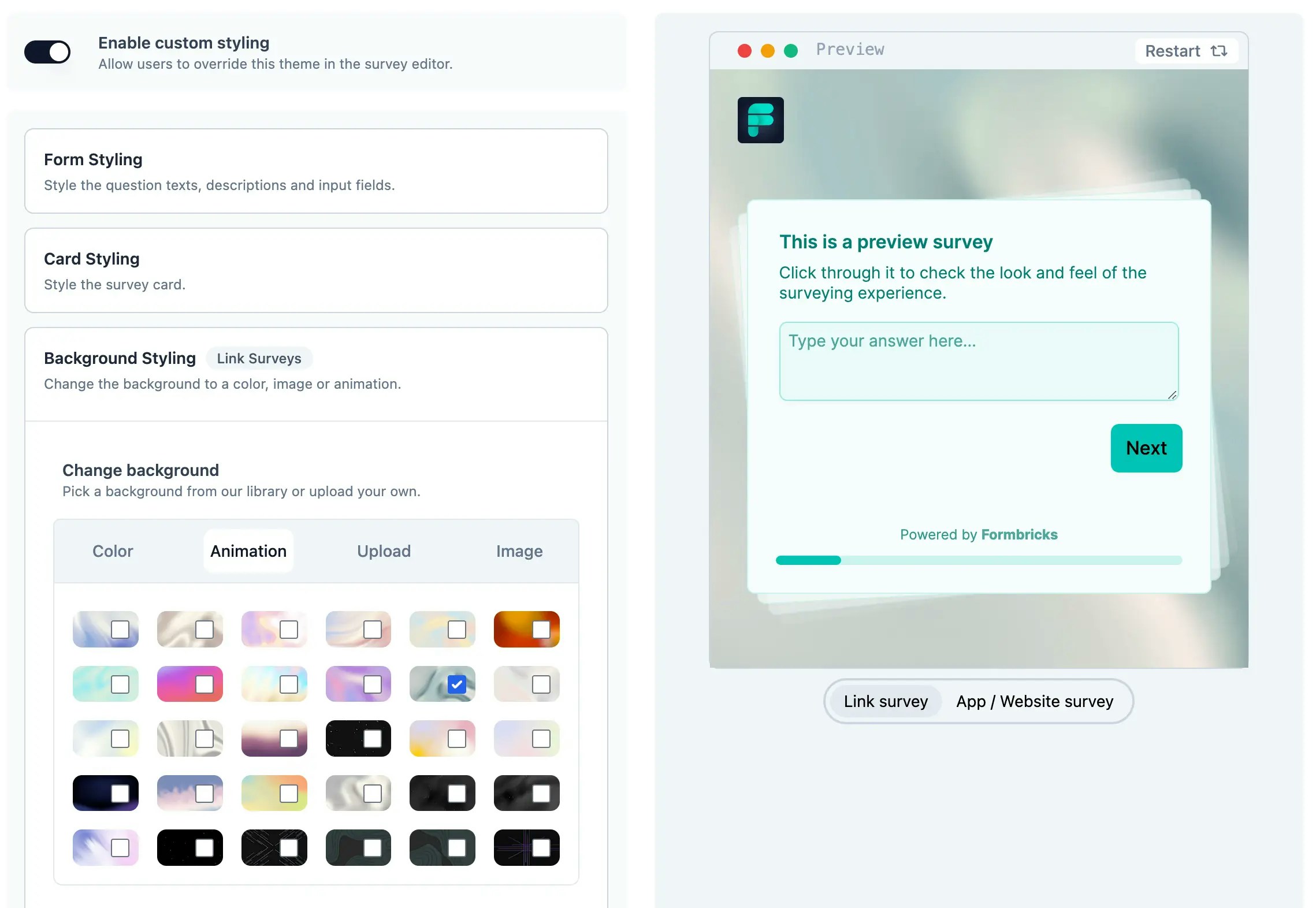 * **Color**: Pick any color for the background
* **Animation**: Add dynamic animations to enhance user experience..
* **Upload**: Use a custom uploaded image for a personalized touch
* Image: Choose from Unsplash's extensive gallery. Note that these images will have a link and mention of the author & Unsplash on the bottom right to give them the credit for their awesome work!
* **Background Overlay**: Adjust the background's opacity
## Add Brand Logo
Customize your survey with your brand's logo.
Brand logos are only visible on Link Survey pages.
1. In the Look & Feel page itself in Project settings, scroll down to see the Logo Upload box.
* **Color**: Pick any color for the background
* **Animation**: Add dynamic animations to enhance user experience..
* **Upload**: Use a custom uploaded image for a personalized touch
* Image: Choose from Unsplash's extensive gallery. Note that these images will have a link and mention of the author & Unsplash on the bottom right to give them the credit for their awesome work!
* **Background Overlay**: Adjust the background's opacity
## Add Brand Logo
Customize your survey with your brand's logo.
Brand logos are only visible on Link Survey pages.
1. In the Look & Feel page itself in Project settings, scroll down to see the Logo Upload box.
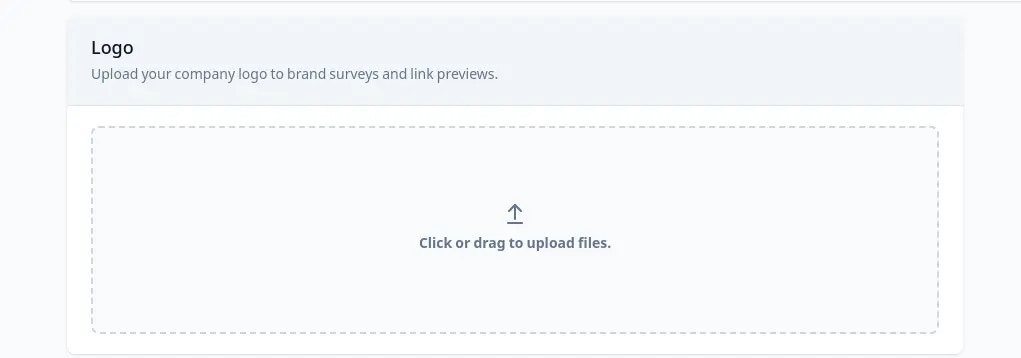 2. Upload your logo
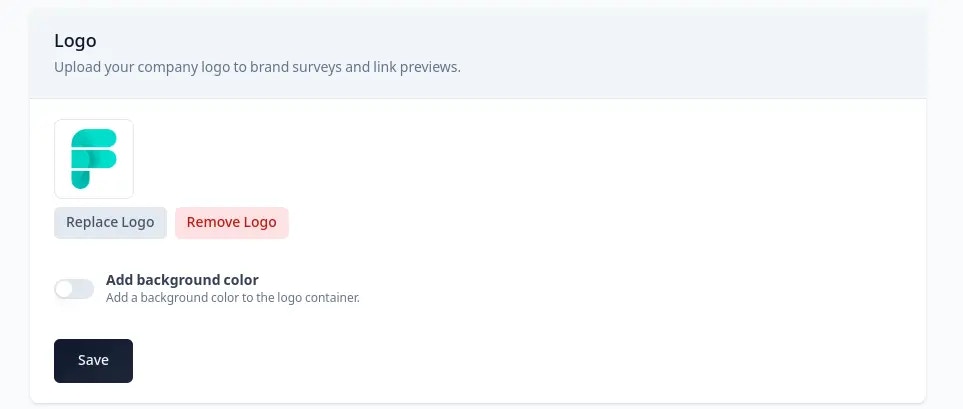 3. Add a background color: If you’ve uploaded a transparent image and want to add background to it, enable this toggle and select the color of your choice.
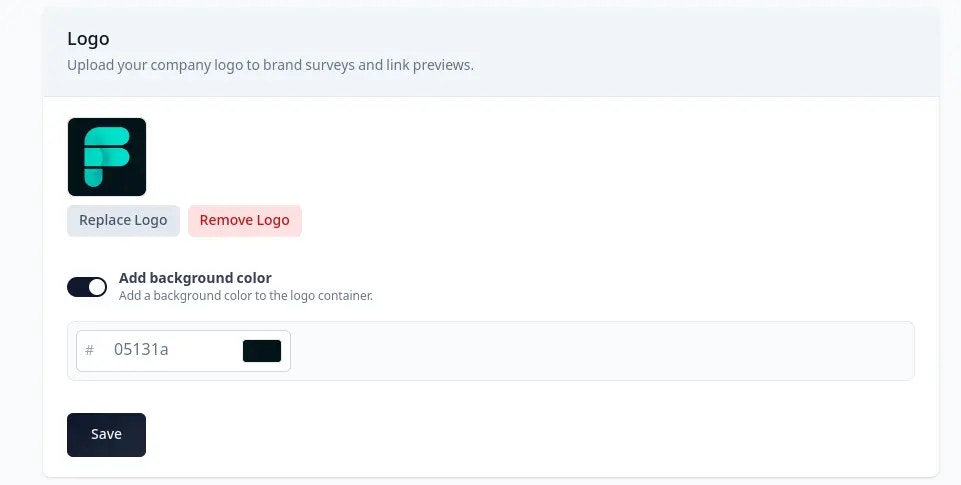 4. Remember to save your changes!
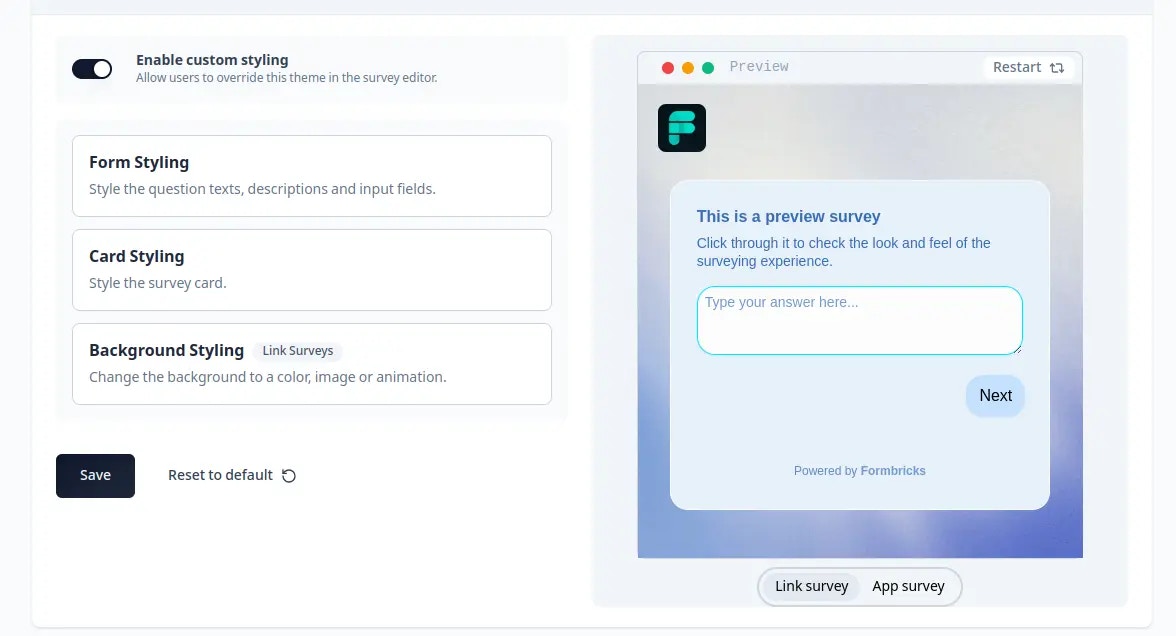 The logo settings apply across all Link Surveys pages.
## Overwrite Styling Theme
You can allow to overwrite the styling theme for individual surveys to create unique styles for each survey:
The logo settings apply across all Link Surveys pages.
## Overwrite Styling Theme
You can allow to overwrite the styling theme for individual surveys to create unique styles for each survey:
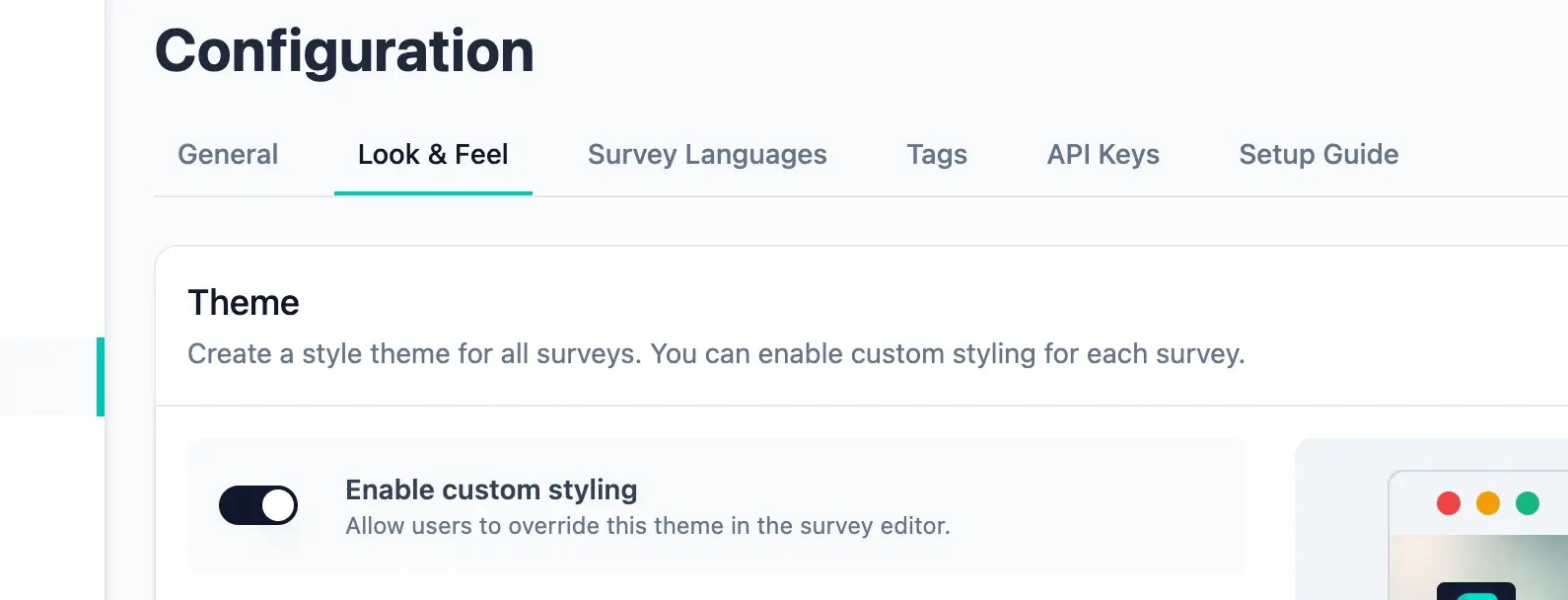 In the survey editor, a tab called `Styling` will appear. Here you can overwrite the default styling theme.
***
In the survey editor, a tab called `Styling` will appear. Here you can overwrite the default styling theme.
***